You have drawn a diagram in Google Sheets, and now you want to copy that editable image into another sheet. I will explain how to do it.
Copy and paste Editable Image drawn in one Google sheet to another
It is not possible to simply copy and paste an editable drawing directly from the grid of one Google Sheet to another using the standard copy shortcuts. If you try, it usually won’t paste anything, or it will paste a non-editable static image.
To move the diagram while keeping it editable, you must copy the elements inside the Drawing Editor window. Here is the step-by-step method:
Step 1: Copy from the Drawing Editor
- Open the Source Diagram
2. Go to the sheet with your drawing.
3. Double-click the drawing (or click the three dots on the top right of the image and select Edit) to open the Drawing window.

4. Copy the Elements:
5. Click anywhere on the drawing canvas.
Press Ctrl + A (Windows) or Cmd + A (Mac) to select all the shapes and text boxes.
Press Ctrl + C (Windows) or Cmd + C (Mac) to copy them.

6. Click Save and Close (or just close the window) to return to your sheet.
Step 2: Paste into the New Sheet
- Navigate to the other sheet (tab or a completely different file).
2 Go to the top menu and select Insert > Drawing.
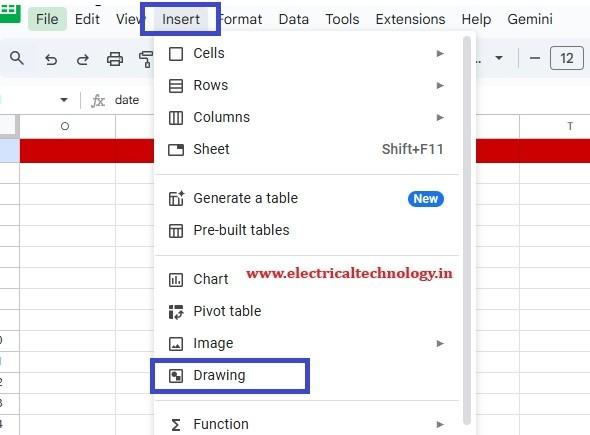
3. In the blank drawing window that appears, press Ctrl + V (Windows) or Cmd + V (Mac).
4. Your editable diagram will appear. Click Save and Close.
Alternative method
Duplicate the Whole Sheet
If you want to move the diagram along with all the data in the sheet:
Right-click the sheet tab name at the bottom of the screen.
Select Copy to > Existing spreadsheet (to move to another file) or Duplicate (to copy to a new tab in the same file).
This creates a perfect copy of the sheet, including the editable drawing.
1 thought on “[100%]Copy and paste Editable Image drawn in one Google sheet to another”