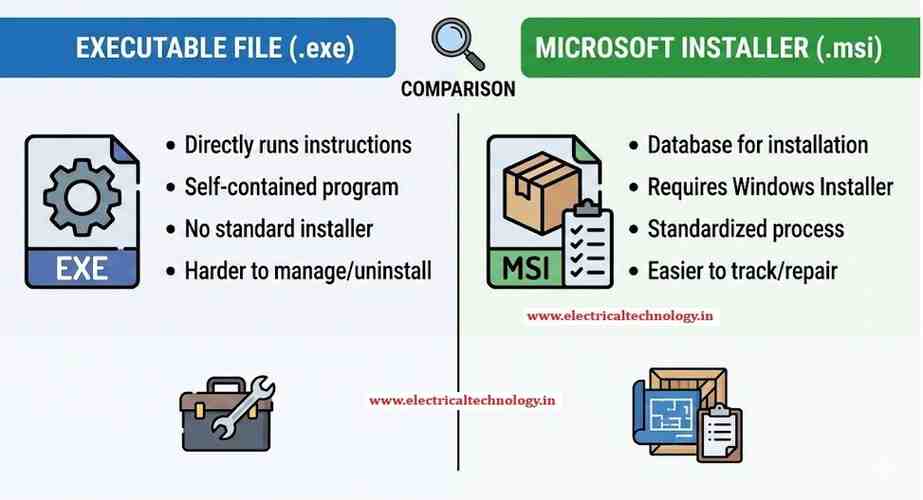
.MSI and .EXE Files Difference: To install a Windows program, we often have to deal with MSI and EXE files. However, there’s a difference between them.
The difference between a .MSI and a .EXE installer boils down to standardization and control.
An MSI file is a structured installation database designed specifically for Windows, leveraging the built-in Windows Installer Service to guarantee consistency. An EXE file, being a general executable program, is a self-contained program that can run any installation logic defined by the developer.
For businesses and IT administrators, the .MSI file is overwhelmingly the superior choice.
Comaprison of MSI and EXE Files
| Feature | .MSI (Microsoft Software Installer) | .EXE (Executable File) |
|---|---|---|
| Core Nature | A database file containing instructions, processed by the Windows Installer Service (msiexec.exe). | A self-contained executable program that contains its own installation logic or acts as a wrapper for other files (including an MSI). |
| Standardization | Highly Standardized. Must adhere to the strict rules of the Windows Installer service. | Highly Flexible. Logic is defined by the developer; can include custom scripts, dependencies, etc. |
| Enterprise Deployment | Best Choice. Integrates seamlessly with management tools like SCCM and Group Policy Object (GPO). | Poor Choice. Automation depends entirely on the developer’s custom logic and silent switches. |
| Silent Install | Standardized & Guaranteed. Uses consistent switches like /qn (quiet, no UI). | Variable & Not Guaranteed. Switches vary by developer, or may not exist at all. |
| Reliability | Transactional. Supports automatic rollback (reverts changes if installation fails) and repair functionality. | Depends on the developer’s custom code; rollback and repair are not guaranteed features. |
| Customization | Excellent for large-scale deployment via Transforms (.MST) to configure settings without altering the original file. | Excellent for single-machine installs that require complex pre-checks or custom UI/steps. |
| Platform | Windows only. | Can potentially be used on other OS via compatibility layers (e.g., Wine). |
Which Suits Your Business Best?
Your choice should be dictated by your deployment environment:
Use .MSI for Enterprise & IT Administration
For large-scale, automated, and secure software distribution, .MSI is the standard.
Centralized Control: Allows IT to push the same standardized installation across thousands of endpoints using existing management tools (SCCM, GPO, Intune) without user intervention.
Predictable Results: Because the Windows Installer service handles the logic, you get reliable, repeatable, and consistent installations every time.
Maintenance: The Windows Installer keeps a detailed database of what was installed, making clean uninstalls, patches, and automatic repairs much more reliable.
Use .EXE for Home Users & Bundled Installs
For individual users or developers packaging complex needs, .EXE is often used.
Dependency Checks: An EXE wrapper can run necessary pre-installation checks (e.g., “Do you have the correct .NET framework version?”) and install those dependencies before launching the main installer.
Simplicity: For a home user, running a single EXE file that guides them through a customized setup wizard is often the easiest process.
Bundling: An EXE can contain and launch multiple nested installers (MSI, EXE, or web downloads) as a single package.
The final decision is typically based on scale: If you are an IT professional deploying software to multiple machines, choose MSI. If you are a single home user installing an application, either an EXE or MSI will work, but the EXE often provides more user-friendly installation steps.
Latest Posts
- Essential Networking Tools Every Network Technician Should Know
 Essential Networking Tools Every Network Technician Should Know: Network technicians use a variety of specialized tools to install, test, troubleshoot, …
Read moreEssential Networking Tools Every Network Technician Should Know
- How to Fix “You Aren’t Connected to Any Network” Error in Windows 10/11
 How to Fix “You Aren’t Connected to Any Network” Error in Windows 10/11: Are you seeing the “You Aren’t Connected …
Read moreHow to Fix “You Aren’t Connected to Any Network” Error in Windows 10/11
- snmp configuration in cisco CBS 350 switch
 snmp configuration in cisco CBS 350 switch: The Cisco CBS 350 is a Small Business switch that can be configured …
 - Mobile Network Not Showing? Simple Settings to Fix Common SIM & Signal Problems
 Mobile Network Not Showing? Simple Settings to Fix Common SIM & Signal Problems: A mobile phone without a network connection …
Read moreMobile Network Not Showing? Simple Settings to Fix Common SIM & Signal Problems
- Yes! The PC can work in Trunk port of a Managable switchHow pc can be connected in trunk port of managable switch: How to connect a PC/ Laptop to a trunk …
Read moreYes! The PC can work in Trunk port of a Managable switch
- Teamlink 721 Switch CLI configuration commands and Shortcut KeysTeamlink 721 Switch CLI configuration commands and Shortcut Keys: The Command Line Interface (CLI) is a medium for you to …
Read moreTeamlink 721 Switch CLI configuration commands and Shortcut Keys
- Airpro AP 4500 SNMP configuration|Airpro 4500 web GUI configAirpro AP 4500 SNMP configuration: Airpro 4500 configuration for snmp settings is shown in web GUI config mode. SNMP(Simple Network …
Read moreAirpro AP 4500 SNMP configuration|Airpro 4500 web GUI config