Restore deleted files: The deleted data can be recovered by using a command winfr (Windows File Recovery).
How to restore deleted files from PC
Firstly, open Command Prompt as an administrator is to press Win + R, type cmd, then press Ctrl + Shift + Enter; alternatively, search for “cmd” in the Start Menu and press Ctrl + Shift + Enter, or right-click the Start button (Win + X) and select “Command Prompt (Admin)” or “Windows Terminal (Admin)”
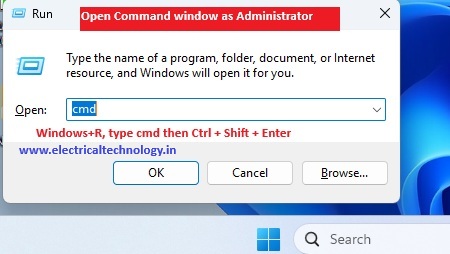
Command for windows recovery
The winfr command refers to windows File Recovery , a free Microsoft command -line tool used to retrieve deleted files from local storage like hard drives, SSDs and USB drives.
How it Works
Install: Download “Windows File Recovery” from the Microsoft Store.
Open: Run Command Prompt as an administrator and type winfr.
Syntax: winfr : : [/mode] [/switches].
SourceDrive: Where files were lost (e.g., C:).
DestinationDrive: Where to save recovered files (e.g., E:), must be different from source.
/mode: /regular (for recent deletions) or /extensive (for formatted drives).
/n: Filter for file path, name, or extension (e.g., /n *.docx, /n \Users\\Documents\).
Example Commands
Recover Word Docs: winfr C: E: /regular /n *.docx.
Recover JPEGs from Pictures: winfr C: E: /extensive /n \Users\\Pictures\*.JPEG.
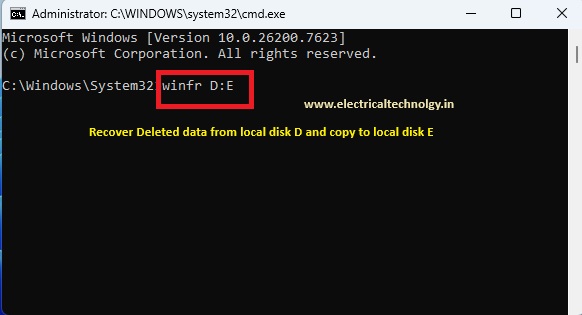
press enter. Then all the deleted files from Local disk D will be restored to Local disk D. the folder name based on the date of recovery.
Important Points to note
Different Drives: Source and destination must differ.
File Naming: Recovered files often have generated names and are in timestamped folders.
Limitations: Doesn’t support cloud storage (OneDrive) or network drives.
The winfr command launches Windows File Recovery, a free command-line utility from Microsoft used to retrieve deleted files that are no longer in the Recycle Bin. It is available for Windows 10 (version 2004 and later) and Windows 11.
Common Command Examples
Recover a specific folder:
winfr C: D: /regular /n \Users\\Documents\
Recover specific file types (PDF and Word):
winfr C: D: /regular /n *.pdf /n *.docx
Deep scan for files containing a keyword:
winfr C: D: /extensive /n invoice
Recover photos from a specific location:
winfr C: D: /extensive /n \Users\\Pictures*.JPG
Essential Usage Tips
Stop Using the Drive: To prevent the deleted data from being overwritten, stop saving new files to the source drive immediately.
Run as Administrator: You must right-click Command Prompt or PowerShell and select “Run as administrator” for the command to work.
Installation: It is not pre-installed. You must download it from the Microsoft Store.
Automatic Folder: Recovered files are saved into a folder named Recovery_ on your destination drive