VPN not working on mobile data: If your VPN works on Wi-Fi but fails on mobile data, it is usually due to carrier protocol restrictions or a mismatch between the phone’s networking (IPv6) and the VPN’s server (IPv4).
How to solve VPN not working on mobile data
Fix the APN (Access Point Name) Protocol
Many modern mobile networks use IPv6 by default, but most VPNs require IPv4 to establish a stable tunnel.
Go to Settings > Mobile Network > SIM Info > Access Point Names.
Select your current APN and look for APN Protocol and APN Roaming Protocol.
Change these from “IPv6” to “IPv4” or “IPv4/IPv6”
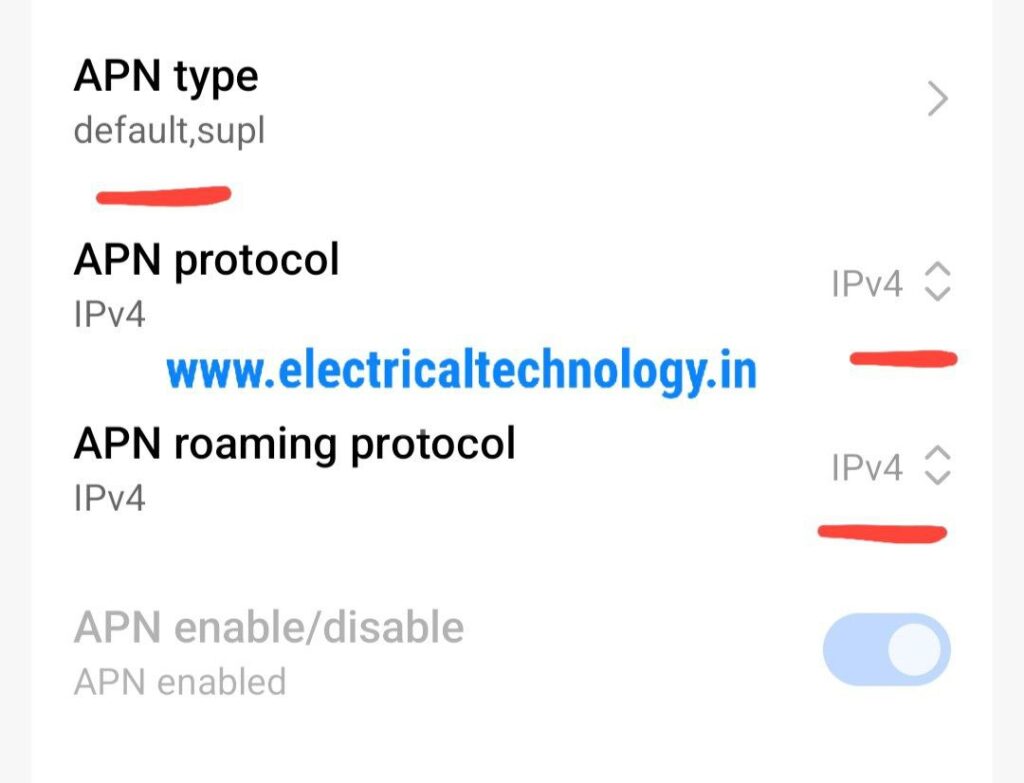
Note: If the fields are greyed out, create a new APN with the same details but manually set the protocol to IPv4.
also try the below settings, and after saving restart your phone.
Change the VPN Tunneling Protocol
Mobile carriers often block or throttle specific VPN ports (like port 500 for IPSec or 1194 for OpenVPN).
Open your VPN app settings and look for “Protocol”.
Switch to WireGuard (often more resilient on mobile) or OpenVPN (TCP).
Try setting the port to 443, which is standard for HTTPS traffic and rarely blocked
Disable Battery & Data Restrictions
Mobile operating systems aggressively “kill” background apps to save power, which can drop your VPN tunnel instantly.
Android: Go to Settings > Apps > [Your VPN App] > Battery and select “Unrestricted”.
iOS: Ensure “Background App Refresh” is enabled for the VPN app in Settings.
Turn off Data Saver or Low Power Mode, as these can block the persistent data stream a VPN requires
Advanced Troubleshooting
Obfuscation: If your carrier uses “Deep Packet Inspection” (DPI) to identify and block VPN signatures, enable “Obfuscated Servers” or “Stealth Mode” in your VPN app.
Check MTU Size: If the VPN connects but no data flows, the packet size (MTU) might be too large for the mobile network. Try lowering the MTU in your VPN settings to 1300 or 1200.
Reset Network Settings: As a last resort, go to Settings > System > Reset > Reset Network Settings. This will clear all Wi-Fi passwords and Bluetooth pairings but often fixes deep connectivity bugs.
- SMPS Power plant for Telecom InstallationsSMPS Power plant for Telecom Installations: Power supply system is the heart of telecom systems & electronic equipments. For a reliable installation of telecom assets, reliable …
- Commands for troubleshooting SFP optical levels OTDR testCommands for troubleshooting SFP optical levels OTDR test:To troubleshoot a link flapping port that has been err-disabled, use these diagnostic tools to isolate whether the fault lies in …
Read moreCommands for troubleshooting SFP optical levels OTDR test
- [Solved]link flap cisco switch port error disabledlink flap cisco switch port error disabled: A Cisco switch port enters err-disabled state due to link flapping when the interface toggles up/down rapidly (typically 3+ …
- [Solved]Sibling Issue in Cisco SwitchSibling Issue in Cisco Switch: Based on Cisco documentation, the error message %SYS-4-CHUNKSIBLINGSEXCEED: Number of siblings in a chunk has gone above the threshold refers to …
- Native VLAN Mismatch Smart port enabled in Cisco switches CBS 350Native VLAN Mismatch Smart port enabled in Cisco switches CBS 350: Smartport is a Cisco feature that automatically applies a set of preconfigured commands (called macros) …
Read moreNative VLAN Mismatch Smart port enabled in Cisco switches CBS 350