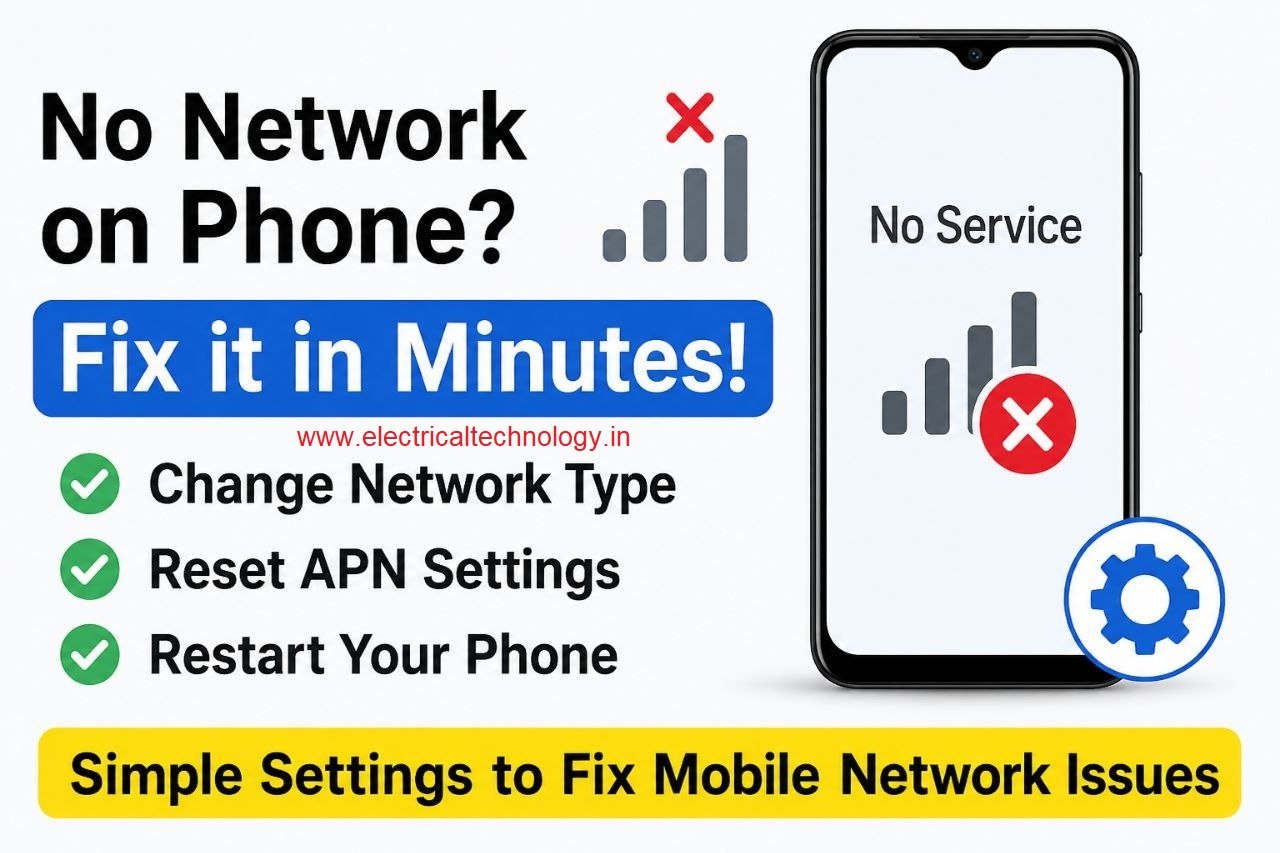
Mobile Network Not Showing? Simple Settings to Fix Common SIM & Signal Problems: A mobile phone without a network connection can be frustrating, especially when calls, SMS messages, and mobile data suddenly stop working. In some cases, the problem may not be with the SIM card or your mobile operator. A few network settings on your smartphone may simply need to be adjusted.
Mobile Network Not Showing? Simple Settings to Fix Common SIM & Signal Problems
This guide explains some simple troubleshooting steps that can help when your SIM card is inserted but the phone is not displaying a mobile network.
Why Is My Phone Not Showing a Network?
There can be several reasons why a smartphone fails to connect to a mobile network, including:
- Incorrect preferred network settings
- Incorrect or corrupted APN configuration
- Temporary network registration problems
- SIM-related issues
- Poor network coverage Temporary problems with the mobile operator
Steps to troubleshoot
Before assuming that your SIM card is damaged, try the settings below.
1. Open Mobile Network Settings
First, open the Settings app on your smartphone. Look for an option such as:
Settings → Mobile Network Depending on the phone manufacturer, it may also appear as SIM & Mobile Network, Connections, Cellular Network, or a similar option.
If you cannot find it, use the search icon in Settings and search for Mobile Network.
The exact menu names can vary between Android phones and different versions of the operating system.
2. Check the Preferred Network
Type Once you enter the mobile network settings, look for Preferred Network Type or Network Mode.
You may see options such as: 2G 3G 4G/LTE 5G 5G/4G/3G/2G Auto If your phone and SIM support 4G, you can try selecting 4G/LTE instead of leaving the phone on an automatic network-selection mode.
Similarly, if your device and mobile plan support 5G, an appropriate 5G option may be available. Why can this help?
When a phone is constantly trying to automatically select between several network technologies, it may sometimes have difficulty registering correctly.
Selecting a compatible network type can help the phone detect and connect to the available network.
However, the best option depends on your phone, SIM card, mobile operator, and local coverage.
If a particular network technology isn’t available in your area, selecting it manually may prevent the phone from connecting.
3. Reset the APN Settings
Another useful troubleshooting step is to reset the Access Point Name (APN) settings.
APN settings are used by your phone to connect to your carrier’s mobile data network.
To access them, go to: Settings → Mobile Network → Access Point Names (APN)
The exact path may be different depending on your smartphone. Inside the APN screen, look for the three-dot menu or settings menu.
You may find an option such as: Restore Access Point or Reset to default Select the reset option and allow the phone to restore the default APN configuration.
This can be particularly useful if the APN settings were accidentally changed or became incorrect.
4. Restart Your Smartphone
After changing the network settings, restart your phone.
Simply switch the phone off, wait for a few seconds, and turn it back on.
Restarting gives the device another opportunity to register with the mobile network using the updated configuration.
After the phone starts, check whether the network signal has returned. What If the Network Still Doesn’t Appear?
If these steps don’t solve the problem, the issue may be unrelated to your phone’s settings.
Try these additional basic checks:
- Remove and reinsert the SIM card carefully.
- Check whether the SIM works in another compatible phone.
- Check whether another SIM works in your phone.
- Move to an area with better network coverage.
- Check whether your mobile operator is experiencing an outage.
- Make sure your SIM is active and your mobile service has not expired.
- Contact your mobile operator if the phone continues to show No Service.
Important Note :About Network Settings Menu names and available options vary between smartphone brands such as Samsung, Xiaomi, Redmi, Realme, OnePlus, Motorola, Vivo, Oppo, and others.
Also, don’t select a network technology that your phone or carrier does not support. If you’re unsure, use the network mode recommended by your mobile operator or phone manufacturer.
Quick Troubleshooting Summary If your SIM card is inserted but your phone isn’t showing a network, try this sequence:
Mobile Network Settings → Check Preferred Network Type → Reset APN → Restart Phone
These simple steps can resolve some common network-registration and mobile-data configuration problems without requiring advanced technical knowledge.
If the problem continues after trying these settings, it’s worth checking the SIM card, network coverage, and your mobile operator’s service status.
Frequently Asked Questions
Why does my phone say “No Service” even though the SIM is inserted?
The phone may be unable to register with the mobile network because of network settings, poor coverage, a SIM issue, or a temporary carrier problem.
Will resetting APN delete my SIM card or phone data?
No. Resetting APN settings restores the mobile network configuration to its default values. It does not erase your personal photos, apps, or other phone data.
Should I select 4G or 5G manually?
Only select a network type supported by your phone, SIM, mobile plan, and carrier. If you’re unsure, the recommended automatic setting may be preferable.
Do I need to restart my phone after changing network settings?
Restarting is a useful final troubleshooting step because it allows the phone to reconnect to the network using the updated settings.
Latest Posts
- Essential Networking Tools Every Network Technician Should Know
 Essential Networking Tools Every Network Technician Should Know: Network technicians use a variety of specialized tools to install, test, troubleshoot, and maintain network cables and communication systems. From preparing Ethernet …
Read moreEssential Networking Tools Every Network Technician Should Know
- How to Fix “You Aren’t Connected to Any Network” Error in Windows 10/11
 How to Fix “You Aren’t Connected to Any Network” Error in Windows 10/11: Are you seeing the “You Aren’t Connected to Any Network” message on your Windows 10 computer? This …
Read moreHow to Fix “You Aren’t Connected to Any Network” Error in Windows 10/11
- snmp configuration in cisco CBS 350 switch
 snmp configuration in cisco CBS 350 switch: The Cisco CBS 350 is a Small Business switch that can be configured for SNMP monitoring through its web-based management interface. snmp configuration …
 - Mobile Network Not Showing? Simple Settings to Fix Common SIM & Signal Problems
 Mobile Network Not Showing? Simple Settings to Fix Common SIM & Signal Problems: A mobile phone without a network connection can be frustrating, especially when calls, SMS messages, and mobile …
Read moreMobile Network Not Showing? Simple Settings to Fix Common SIM & Signal Problems
- Yes! The PC can work in Trunk port of a Managable switchHow pc can be connected in trunk port of managable switch: How to connect a PC/ Laptop to a trunk port of a Managable switch? Generally, in a PC RJ …
Read moreYes! The PC can work in Trunk port of a Managable switch
- Teamlink 721 Switch CLI configuration commands and Shortcut KeysTeamlink 721 Switch CLI configuration commands and Shortcut Keys: The Command Line Interface (CLI) is a medium for you to communicate with the TEAMLINK 721A. You can configure, monitor, and …
Read moreTeamlink 721 Switch CLI configuration commands and Shortcut Keys
- Airpro AP 4500 SNMP configuration|Airpro 4500 web GUI configAirpro AP 4500 SNMP configuration: Airpro 4500 configuration for snmp settings is shown in web GUI config mode. SNMP(Simple Network Management Protocol) SNMP: an application-layer standard protocol used for monitoring …
Read moreAirpro AP 4500 SNMP configuration|Airpro 4500 web GUI config
- SMPS Power plant for Telecom InstallationsSMPS Power plant for Telecom Installations: Power supply system is the heart of telecom systems & electronic equipments. For a reliable installation of telecom assets, reliable power supply system is …
- Commands for troubleshooting SFP optical levels OTDR testCommands for troubleshooting SFP optical levels OTDR test:To troubleshoot a link flapping port that has been err-disabled, use these diagnostic tools to isolate whether the fault lies in the fiber optics or …
Read moreCommands for troubleshooting SFP optical levels OTDR test
- [Solved]link flap cisco switch port error disabledlink flap cisco switch port error disabled: A Cisco switch port enters err-disabled state due to link flapping when the interface toggles up/down rapidly (typically 3+ times within 10 seconds), …